A search form contains a set of criteria for searching for elements of interest to you.
Any criterion not filled in is not taken into account.
To display the list corresponding to the entered criteria, click on  , the [Results] tab or press the [Enter] key on your keyboard (see also Keyboard shortcuts).
To delete all your criteria, click on the  icon.
icon.
To go back to the search form, click on the [Criteria] tab.
To manage custom filters and advanced filters, use the  icon.
icon.
Also see Screen indicators: Customizing.
Direct access
If you know the exact code of the element to be opened, enter it in the field designating it, then click on the  icon.
icon.
→ The detail form is opened directly.
Search criteria
If you do not know the exact code, you can search for it by entering search criteria, which may contain wildcard characters:
* represents one or more characters.
? represents a single character.
'' replaces the "is empty" comparator, for text fields only.
The search criteria of the advanced filter are combined with the values entered on the [Search] tab].
Simple input field
Example: "Name" field.
In this field you enter text with the possibility of using the wildcard characters "*" and '?'.
Illustration:
If I enter '*CHAUD*' (boiler) in the "Name" field,
my result list will only contain items that include: "chaud" or "CHAUD" (boiler) in their name,
thus: 'Boiler', 'BOILER METER', etc.
The wildcard character "?" only represents a single letter.
Entry field with search 
Example: "Manager" or "Equipment" field.
You can use it in exactly the same way as the simple entry field, by entering text with one or more wildcard characters.
You can also look for a specific element by clicking on the magnifying glass (see Icons).
For example, in the work order search form you select the geographical point "BUILDING1" from the list of geographical points in order to display the list of work orders concerning BUILDING1.
or select a date from the calendar that is displayed by clicking on the magnifying glass.
Check box 
A box with two or three states: true, false, and possibly indifferent.
Example: "Repairable" or "Managed in inventory" for items.
The transition from one state to the next occurs with successive clicks.
- If I check "Repairable" once, the box is checked and I will only obtain repairable items.
- If I check "Repairable" a second time, the box is unchecked and I will only obtain non-repairable items.
- If I have not checked "Repairable" or if I check it a third time, the box turns grey and I will obtain items without regard to whether they are repairable or not.
Drop-down list 
A list for selecting a value.
Example: "Type of movement" for inventory history.
The list only contains elements having this value for this criterion.
- If I select "Inventory" as the type of movement, the list will only contain inventory movements.
Multiple selection list
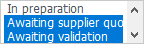
A list for simultaneously selecting several values. The elements are to be selected by clicking while holding down the [CTRL] key on your keyboard. This is generally the [Status] field. You select the statuses of the elements that you wish to have on the list.
Example: If I select the "Pending validation" and "Validated" statuses, the list will only contain work orders having either one of these two statuses.