You can link a document to a particular entity: a work order, equipment item, supplier, etc.
Prerequisites
- To have configured the types of documents.
- To create a new document: to have created the file to be attached.
- To add a document from the library: to have created the document in the library.
- To have the right to manage documents for the current function, see Profiles.
Procedure via the linked documents icon
- Open the detail form of the entity in question.
- Click on the linked documents icon
 .
.
→ The list of linked documents is displayed.
- Click on the add icon
 .
.
→ The application gives you the following menu:
- Create a new document
- Link a document from the library
These two possibilities correspond to two different rights in the user profile.
- Click on [Create a new document]: the document detail form is opened for creation purposes; see Document [General].
- Click on [Link a document from the library]: the library form is opened; see Using the library.
In all cases, the created document will only be linked to the current entity.
Document creation
Adding a Web URL
- Select the "Web URL" type."
- In the "Path" field, enter the address of the page; for example http://www.carl-intl.fr
→ CARL Source indicates the URL name www.carl-intl.fr
Addition of a file address:
Only if the file is stored in a location accessible to all CARL Source users and from the server where CARL Source is installed
- Select the "File address" type."
- In the "Path" field, enter the complete address of the file, for example: "P:/cmms.fr/warranties/2006/PLAN_001.doc."
→ CARL Source indicates the file preceded by its address.
Adding a file stored by CARL Source
- Select the "Stored file" type."
- In the "Path" field, enter the complete address of the file or use the "Browse..." button.
The path will contain, for example, "C:\Interventions\2007\BAT710\IMG011234.jpg." - Click on the "Send" button to load the document at the defined location in CARL Source (see Types of document).
→ CARL Source indicates the file name, for example "IMG011234.jpg."
Sharing a document
If the document linked to an entity can be useful to other entities and you have sufficient rights, you can include it in the library by clicking on the "Add to library" button.
The document now belongs to the library.
Procedure via document "Drag and drop"
This action allows you to simply add linked documents by "drag and drop" them from an entity's details.
Some of the possibilities provided by the linked documents icon (adding a Web URL or file address - see procedure described above) are not accessible via drag and drop.
Documents added via drag and drop are only stored files and are not included in the library.
Documents added via drag and drop are only stored files and are not included in the library.
- Open the detail form of the entity in question.
- Click on the
 icon in the "Linked documents" section on the right and use the Browse button or drop the file(s) to be added directly on the "Linked documents" section.
→ A window is displayed with all the documents to be added.
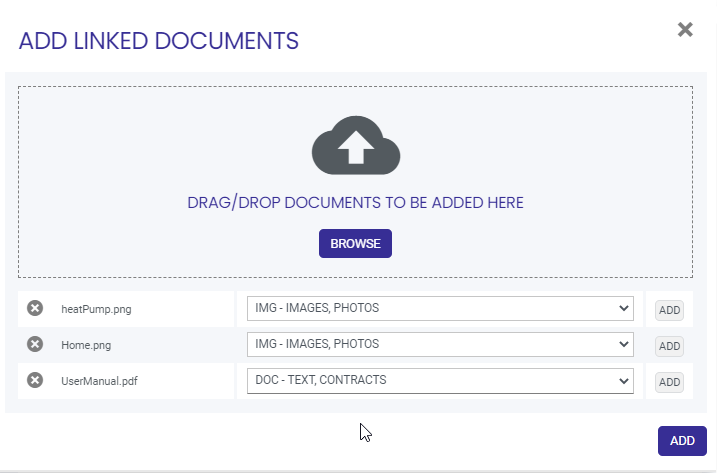
- Each document line to be added contains:
- The action
 : this action allows you to delete a document not yet saved.
 - The document name is added. This name corresponds to the name of the linked document.
- The list of document types allows you to categorize the document to be added, see Document types. This field is required.
- The Add button allows you to add a file in a single way.
The ADD button at the bottom of the window allows you to add all the files referenced in the window globally.
- Click the Add button to save the document(s).
→ The icon appears in the line if the saving took place properly.
→ The icon appears in the line if a problem occurred during saving.