The right-hand side of a detail screen contains panels that provide quick access to information related to the entity currently being viewed or edited.
View related documents
The "Related Documents" section provides quick access to the entity's documents.
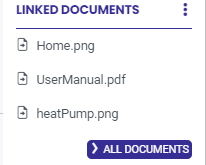
- Click on the title of the linked Document.
→ The document opens for preview or saving.
If the number of Documents displayed exceeds the configured limit (*), a "All Documents" button appears. Clicking this button opens the screen View the list of related documents via direct access.
(*) The number of items displayed in the blocks on the right is defined in [Configuring the Information Area]. The value is set to 3 by default.
View an entity’s timeline
The "timeline" section contains events related to an asset. Currently, this section can display the asset’s most recent statuses and/or interactions involving the asset. The information is sorted in reverse chronological order.
The information to be displayed in this area can be configured using the [Configuring the Information Area] located in the [Settings] block of the [System].
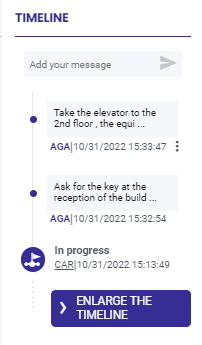
Report History
The fields displayed are:
 : Icon representing a "status" event,
- Status : The one resulting from a state change (or from creation, in the case of the first line),
- Comment : Comment associated with the status change,
- Agent : User who updated the status,
- Date : The state change,
 : Information regarding the Signature (image and comment).
Discussion Thread
 : Icon representing a "discussion thread" type of event,
- Discussion Thread : Content of a conversation,
- Agent : User who entered the exchange. Only the first 3 characters are displayed. The full name is visible via a tooltip that appears when you hover over it,
- Date : That of exchange,
 : Allows you to perform actions on the most recent comment entered by the logged-in User.
(*) The number of items displayed in the blocks on the right is defined in [Configuring the Information Area]. The value is set to 5 by default.
View an entity’s timeline in maximized mode
An "Expand Timeline" button is available at the bottom of the block. Clicking this button opens the timeline in full-screen mode so that you can view all elements in their entirety.
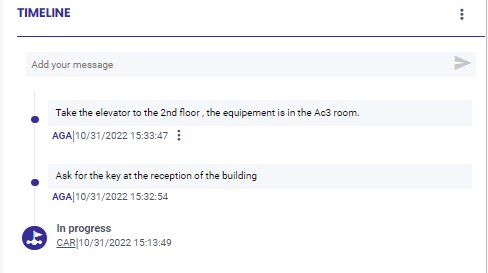
Actions Available on the Timeline
Depending on the status of an entity and the associated profile permissions, the following actions can be performed on the timeline:
- Add a new exchange : There is a field at the top of the timeline,
- Edit a conversation : This option is available only for the most recent exchange and only if it was written by the logged-in user. It is accessible via the button ,
- Delete a conversation : This option is available only for the most recent exchange and only if it was written by the logged-in user. It is accessible via the button .
Moderate the content on the timeline
The "Global > Moderate Discussion Threads" profile permission allows you to assign the moderator role to one or more Users. By default, this permission is enabled on the CARL profile.
A user with moderation privileges can edit or delete the content of all discussion threads using the associated actions accessible via the button Text displayed at the top of the widget:
- Edit a discussion thread : The moderator can edit the content of the discussion thread. Once the content is edited, an * appears to the left of the author’s name in the thread, along with the message "Message edited by a moderator" appears when hovering over the trigram of the thread's author.
- Delete a discussion thread : The moderator can delete content from the discussion thread. Once the content is deleted, it is no longer visible in the widget, whether minimized or maximized. However, for better traceability, you can enable the "Show all messages" option via the button The widget in maximized mode.
This action displays, in the conversation thread, the location of the deleted message, with its content replaced by "Content removed". The term "Message deleted by a moderator" appears when hovering over the trigram of the thread’s author.
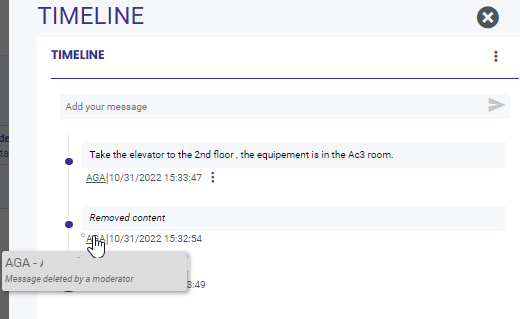
You can revert to the original settings by selecting the "Hide Deleted Messages" option, which is accessible via the button The widget in maximized mode.
The selected action is retained only while the item’s details are being viewed.
View key characteristics
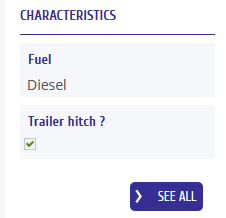
The "Characteristics" section contains the characteristics marked as "important" for the entity. This section also provides access to the history of the characteristic's values, if necessary.
If there are more Characteristics than the widget can display, the text "..." appears at the bottom of the list to indicate this. These additional items will appear in the widget’s maximized view.
View key characteristics in full-screen mode
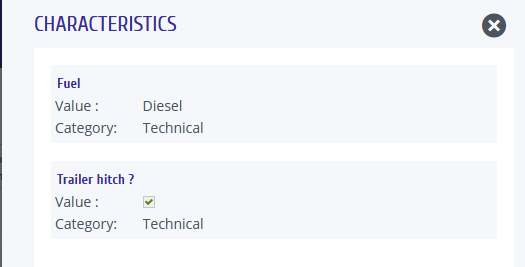
A “View All” button is available at the bottom of the block. Clicking this button opens the list of key Characteristics in full-screen mode, allowing you to view all items in their entirety along with additional information from the “Theme” section.
You can also access the history of each Characteristic (if necessary).
View the data log monitors
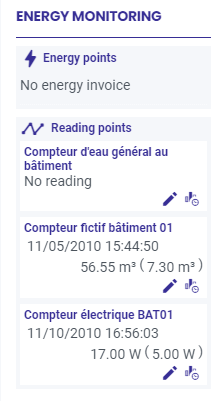
The "Meter Reading Monitor" section contains information related to energy: energy data and readings from reading points.
You can configure the display to show the desired fields: Energy Points, Reading points, or both.
View the Checkpoints
The "Checkpoints" section contains information related to equipment Checkpoints. Using the buttons, you can:
- Open directly to the Checkpoint
- View the history condition reports.