Customize the home screen in order to access the function you need with a single click.
For administrative functions, see Home screens and Component layout.
You can rearrange the component layout by dragging and dropping, but you can also add new components as required.
List of be configurable components
The home screen consists of configurable components that you can organize as you wish:
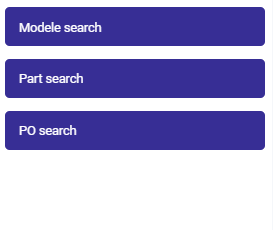
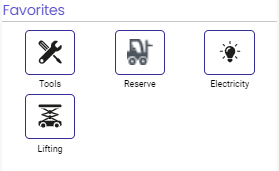
- The Favorites component: Contains direct links to functions.
In "List" mode
In "Icon" mode
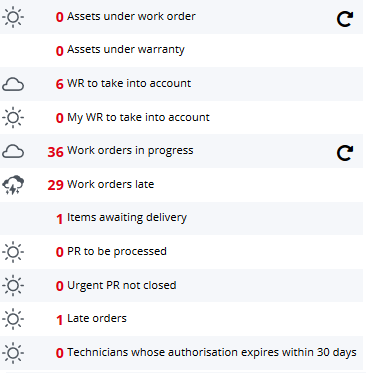
- The Dashboard component: List of indicators.
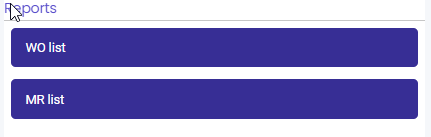
- The Reports component: List of reports to be printed.
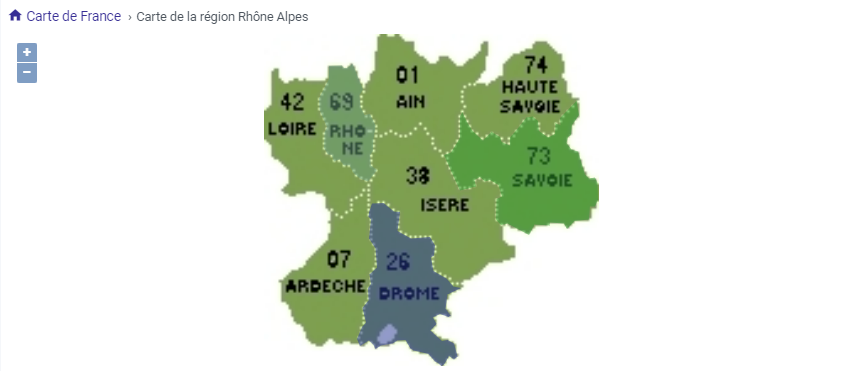
- The Site component: Overview of a site of your choice.

- The Graphical indicator component: Gauge or tile display for showing the current value of an indicator, and Histogram or Line displays for historical indicator values.
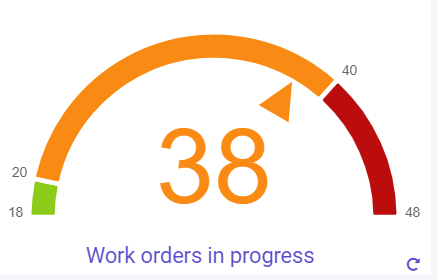
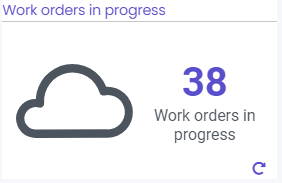
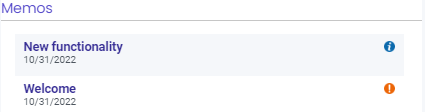
- The Memos component component: List of memos, either General or specific to an entity.
Editing a home screen
Depending on the user's profile rights, the user can configure their home screen according to their needs.
- To change a home screen, use the
 icon. This action provides the user with several customization possibilities.
 - To confirm the changes made, use the
 icon.
icon. - To undo the changes made, use the
 icon.
icon.
Moving an existing component
See Component layout.
Deleting an existing component
To delete an existing component from the Home page, click on the  customization icon for the component concerned.
Adding a new component
To add a new component to the home page, use the  icon.
icon.
This action opens a panel on the right side of the screen containing 1 or 2 tabs.
- "Blank components" tab: This tab contains a list of existing components in CARL Source that can be added to a home screen.
-
"Pre-configured components" tab: this tab contains a list of components that are already preconfigured for a Home screen via the Home screen function, but which cannot be viewed on the Home screen.
1. The "Pre-configured components" tab is only visible if components have been pre-configured.
2. Several components of the same type can be added to a home page.
For each component to be added:
- Click on the component in the right panel.
→ The component is positioned in the positioning grid.
- Configure the component via the settings window.
- Move the component to the desired location on the Home screen.
Configuring a component
To configure a component, click on the  icon of the component concerned.
Resetting the default home portal
At any time, you can reset the home portal to the default home screen associated with the profile using the icon .
.