Procedure
- On the [Search] tab of the function, make sure no filter is selected on the drop-down list next to the icon
 .
. - Then, on the filter menu , select "Create an advanced filter."
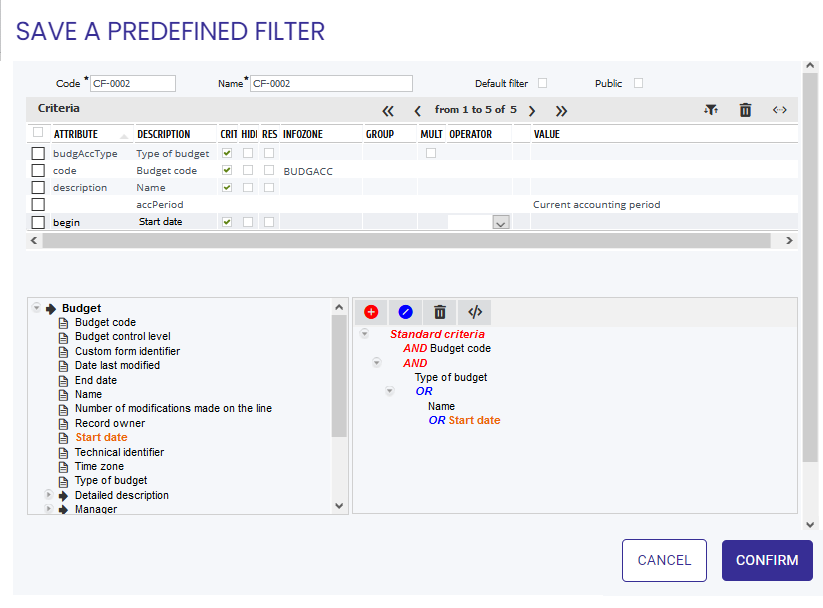
→ The creation pop-up for the filter is displayed.
Name of the advanced filter
- Code: Filter identifier.
- Name: Name of the filter that will appear on the drop-down list.
- Default filter: Check so that this filter will be applied when the function is opened.
- Public: Check if the filter must be accessible to all users.
- "Test" button: To check the consistency of the entered data.
List of criteria
- Attribute: Internal identifier of the CARL Source attribute.
- Name: Name of the attribute, can be changed.
- Criterion: Clear if the attribute is to be displayed only on the [Results] tab.
- Hidden: Criterion not visible.
- Results: Attribute to be displayed in the last column of the [Results] tab.
- Infozone: If the value is to be selected from an existing list.
- Group: In the case of a collection called several times, see below.
- Multiple: To be checked if the criterion authorizes multiple value choices.
- Operator: Type of comparison between the desired value and the value entered for the criterion.
-
Magnifying glass icon: Select:
- Either an attribute or a date expression, for date and/or time criteria,
- Or an attribute, for criteria of any other type (attribute compatible with the criterion type, e.g. a numeric attribute if the criterion is a number).
- Value: Default value. You may use a dynamic expression, particularly for dates.
For the operator value, the "equal" criterion allows the use of wildcards:
- '*' for a set of characters,
- '?' for a single character,
- '' indicates that the value is not filled in.
Adding a criterion
- Select the attribute in the tree structure of the elements linked to the current object with a simple click:
 Object linked to the current object with a single link: select one of its attributes
 Object linked to the current object with a multiple link: select one of its attributes.
 Attribute selectable as a filter criterion. By clicking on it, you add it, together with any link information, to the right-hand window.
To display on the [Results] tab, you can directly select an object; in this way you will have a hypertext link.
However, a search criterion cannot be an object. It will refer to the code, name, or other value of the object.
Date type dynamic expression:
In order to enter a dynamic value of the {sysDate} - 1 {month} type, use the "Choice of a date type expression" infozone field and then select an expression. The user can then customize their choice.
Other variables are also available:
- sysShortDate: system date without the time
- startOfWeek: start of the current week
- endOfWeek: end of the current week
- startOfPrevWeek: start of the previous week
- endOfPrevWeek: end of the previous week
- startOfNextWeek: start of the next week
- endOfNextWeek: end of the next week
- startOfMonth: start of the current month
- endOfMonth: end of the current month
- startOfPrevMonth: beginning of the previous month
- endOfPrevMonth: start of the previous month
- startOfNextMonth: start of the next month
- endOfNextMonth: end of the next month
- startOfYear: start of the current year
- endOfYear: end of the current year
Applying an "or" link between two criteria
Standard criteria and criteria entered are always linked by an AND condition.
By selecting a node, a child condition of the AND or OR type can be added.
When a filter is created, selecting the first criterion automatically adds "Standard criteria" followed by AND.
A block of combined criteria can subsequently use only a single operator: blocks are thus generated automatically when an operator (AND, OR) is added, depending on the block and line selected.
It is important to pay attention to the cursor position, as all actions (adding operators or new criteria) are implicitly applied to the last selected node.
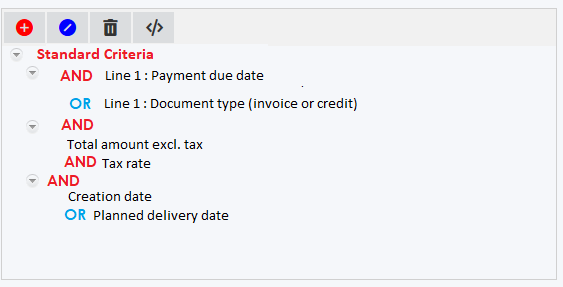
The example above represents the following query:
(Standard criteria) AND ('[Line 1] Payment due date' OR '[Line 1] Invoice type (invoice or credit note)') AND (createDate OR deliveryDate) AND (amountHT AND taxRate)
Switching from a tree view to a pseudo-SQL query view
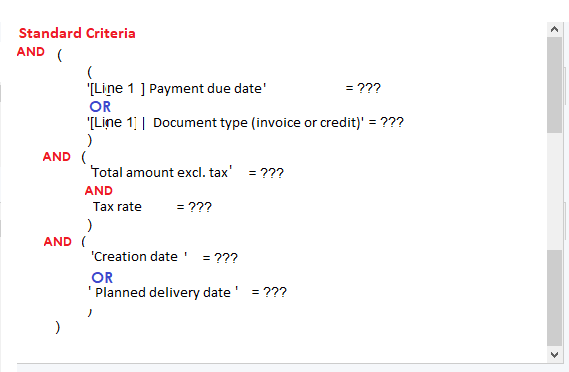
Clicking this button  switches from a tree view (see image above) to a pseudo-SQL query view (see image below):
Using the same attribute in several criteria
The same attribute of a collection can be used several times.
For example, you wish to be able to search through:
- all Assets having one risk or another,
- all work orders declared with one symptom or another.
To do this:
- On the list of attributes, split the collection by clicking on the split icon
 .
.
→ The collection appears with a line number prefix. - Select the attribute a first time.
→ The attribute is added to the condition tree. - Repeat the operation as many times as you wish to see the criterion appear. Next, assemble the criteria under an "or" node."
Supplementary information
- Groups:
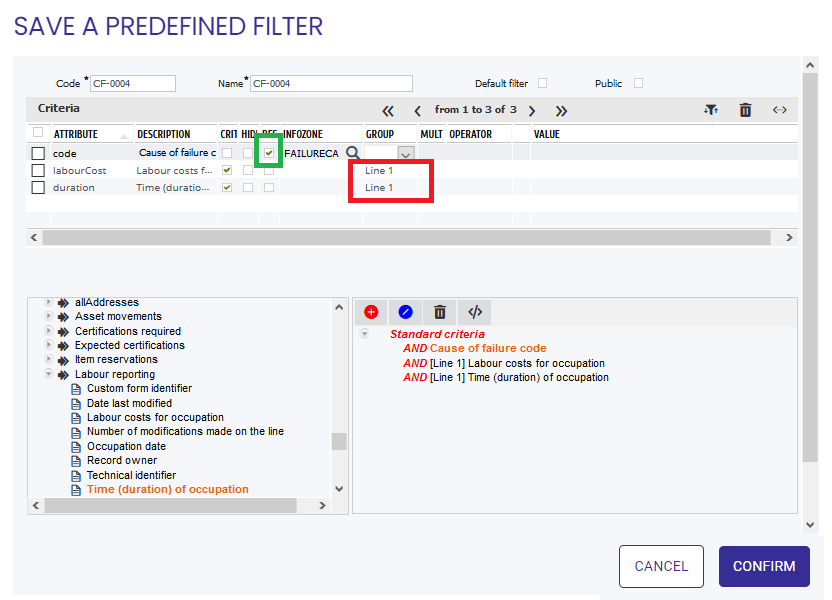
The concept of Groups can be used, for example, to locate all work orders with a labor lasting more than 4 hours AND a labor generating a cost of more than 500 euros.
- If the concept of Groups is not used, the condition will apply to the same labor (implicit join).
- By distinguishing two groups (line 1, 2), the resulting filter will propose a work order if two separate occupations meet the two criteria (two separate joins).
- Adding columns to the result list:
It is possible to add a new column which will be displayed (display only) in the result list if an advanced filter is used.
To do this, select the code for a reference (e.g. failure cause) by clicking on the corresponding blue arrow.
The 'Res' column is automatically checked to indicate this notation.