In the customization mode, you can:
- Modify the color and appearance of the font and the position of fields and whether they are required or not on the screens.
- Add fields and tabs and thus completely reorganize a form to adapt it to your needs.
The customization mode features:
- two additional tool boxes.
- The possibility of selecting the screen elements in order to modify them.
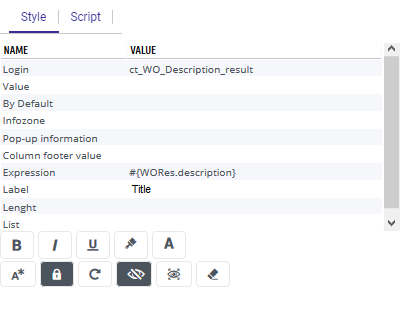
"Settings" toolbar
- Select a control on the page simply by clicking. (To select a multiple-line comment, click on
 ).
).
→ It appears in a red dotted box.
→ The properties of this control are displayed on the "Settings" toolbar. See Properties of controls.
 |
|
Modify the field or column font. Respectively: color, bold, underlined, italics. Modify the background color of the control. Make the selected field required (or not required if it had previously been made required: a field that was initially required cannot be made non-required). Display all controls, including hidden ones. Hide (or re-display) the selected field or column. Make the field not modifiable. Refresh linked fields when the value of the field is modified (Ajax). To be used in the case of a script. Cancel all customization changes made to the selected control. Cancel all customization changes to the form (when no control is selected). Delete a control added in customization mode. |


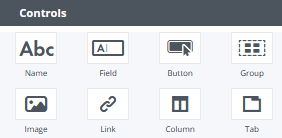
"Control" toolbar
This toolbar contains the controls that you can add to the page; see Details on controls.
To add a control to the form, click on the control and drag it to the location you wish.
Positioning of controls on the page
After adding controls to a form, you can adjust their layout by aligning them.
- Select the controls to be aligned by successively clicking on each control while holding down the "Ctrl" key on the keyboard.
→ The selected controls appear outlined.
→ The setting tool dialogue displays the alignment buttons.
- Click on the button corresponding to the desired alignment.


