

2. Prerequisites
The asset must comply with the description of the asset recommended by CARL Berger-Levrault.
-
CARL Source Version 7.7.0
-
CARL Admin Version 5.5
-
Tomcat® 8.5 application server
-
Smartphones and Tablets on Android™ 10 or higher, iOS 13 or higher

|
This installation procedure has been drawn up to cover the most common cases. However, if other specific software has been installed on the machine on which the application is to be run, in some cases conflicts with this installation procedure may arise or the correct operation of our software may be affected. If you have implemented custom settings on the machine (network rights, firewall, system settings, and so on), our application could be adversely affected. If problems arise, we recommend attempting to install on a machine that is as standard as possible. The following types of software in particular may adversely affect the installation:
|

|
CARL Berger-Levrault does not warranty that our application will operate with all possible combinations of OS settings and all specific applications that may be installed on the machine. |
3. CARL Touch system settings
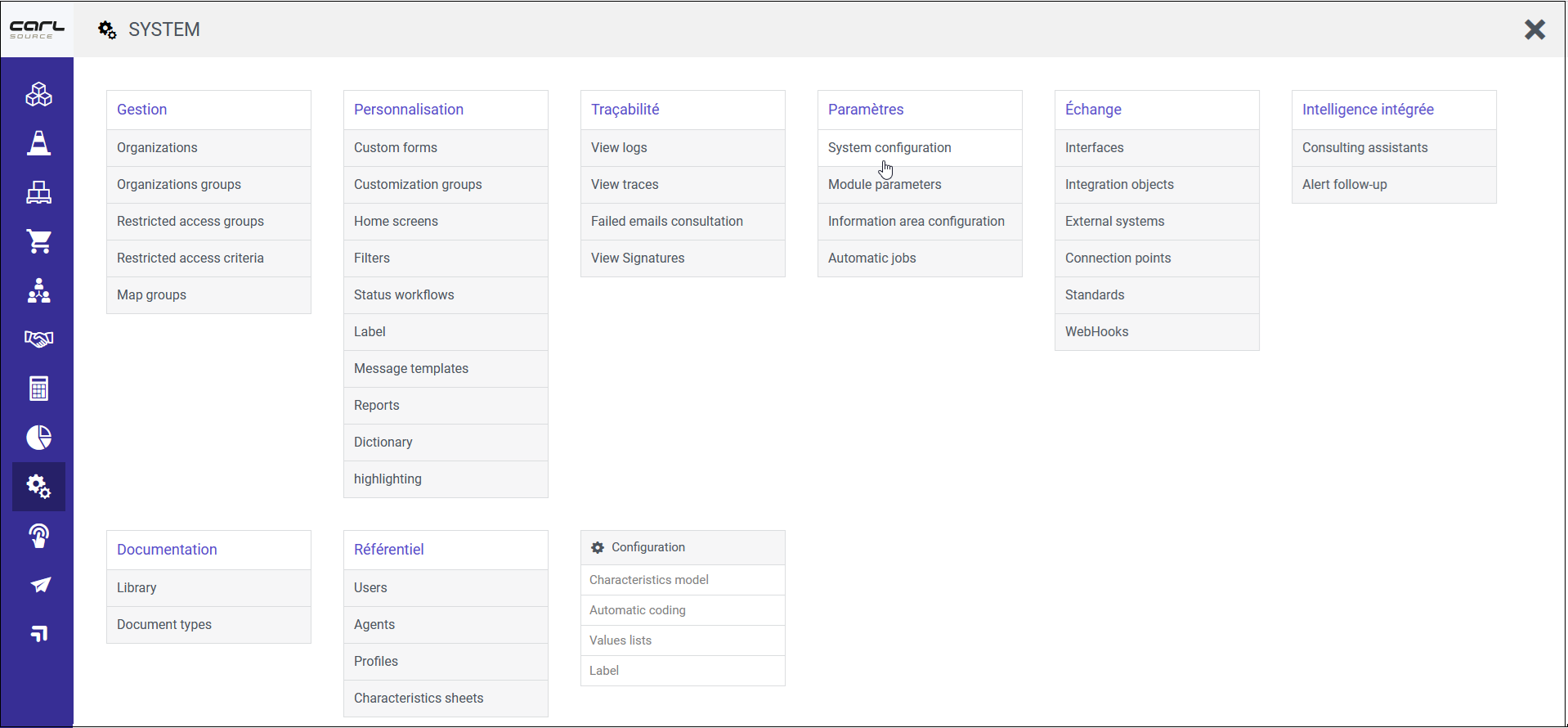
The system configuration settings for CARL Touch are defined in the System configuration function of the System module in CARL Source.
|
|
The availability of certain functions and settings may vary depending on your installation and options. |
3.1. General
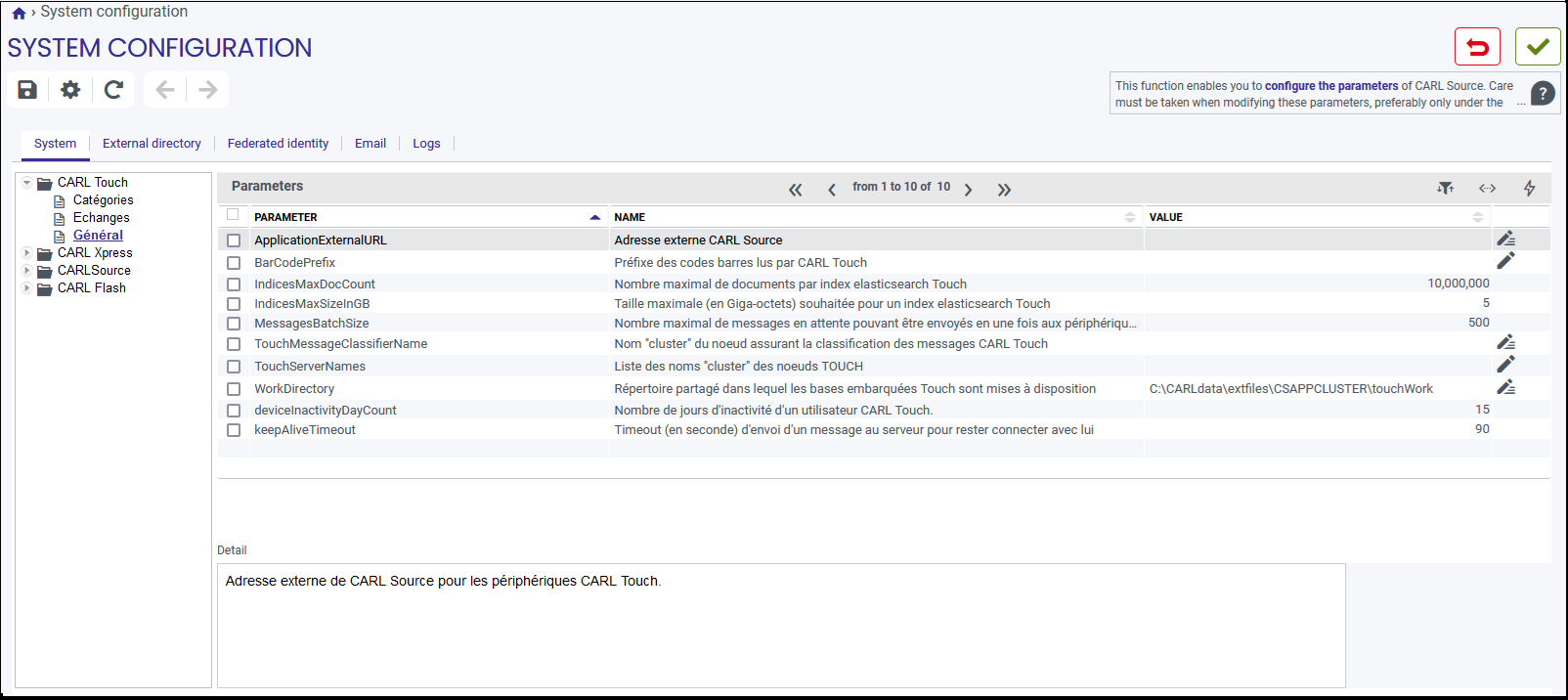
Select the General category for the CARL Touch product. The sixteen CARL Touch settings are displayed, with their values.
|
|
Changes to the values of these settings are applied immediately. |
3.1.1. ApplicationExternalURL
External address for CARL Source, to which CARL Touch mobile devices connect.
This URL uses the http or https protocol.
3.1.2. BarCodePrefix
Prefix used in bar codes to be interpreted by CARL Touch.
An item with a code of RLT-2001 must be labelled with a urn:RLT-2001 barcode.
3.1.3. IndicesMaxDocCount
Maximum number of documents to be retained within an Elasticsearch® Touch index.
If the number of documents exceeds this threshold, the next "rollover" query will create a new index according to the policy defined for each Touch index.
The basic recommendation is 1 million and tests have been conducted up to 50 million.
3.1.4. IndicesMaxSizeInGB
Maximum size desired for an Elasticsearch® Touch index.
If the size exceeds this threshold, the next «rollover» query will create a new index according to the policy defined for each Touch index.
The basic recommendation is 50 GB.
3.1.5. MessagesBatchSize
A process running as a background task is tasked with continually reading the database and sending pending messages to connected devices. This setting specifies the maximum number of pending messages read from the database on each iteration of this process. If this number is set too high (e.g. greater than 1000), the database server resources and application server memory usage may be overloaded. Conversely, if this number is set too low (e.g. less than 50), the data packets sent out at each iteration of the process will not enable the pending messages to be handled effectively. A value close to the default (500) is thus recommended.
3.1.6. TouchMessageClassifierName
«Cluster» name of the node for classifying CARL Touch messages.
This setting contains the «cluster» name of the node classifying messages going to CARL Touch.
3.1.7. TouchServerNames
This setting corresponds to a comma-separated list of the names of the machines that may start a WebSocket connection. If this list is empty, all the machines can start them.
The name of the machine as used here may be highlighted on server startup by setting the "carl.server.name" Java™ system property on JVM startup: java-Dcarl.server.name=backend-1…
3.1.8. WorkDirectory
Working directory in which the files containing the SQLite databases generated during the initial loading of CARL Touch data are generated and read.
For a cluster installation, this directory must be on the NAS shared by the nodes, with read and write access rights.
3.2. Exchanges
For the settings of the Exchanges section, please refer to the CARL Touch User guide: CARL Touch system settings.
3.3. Categories
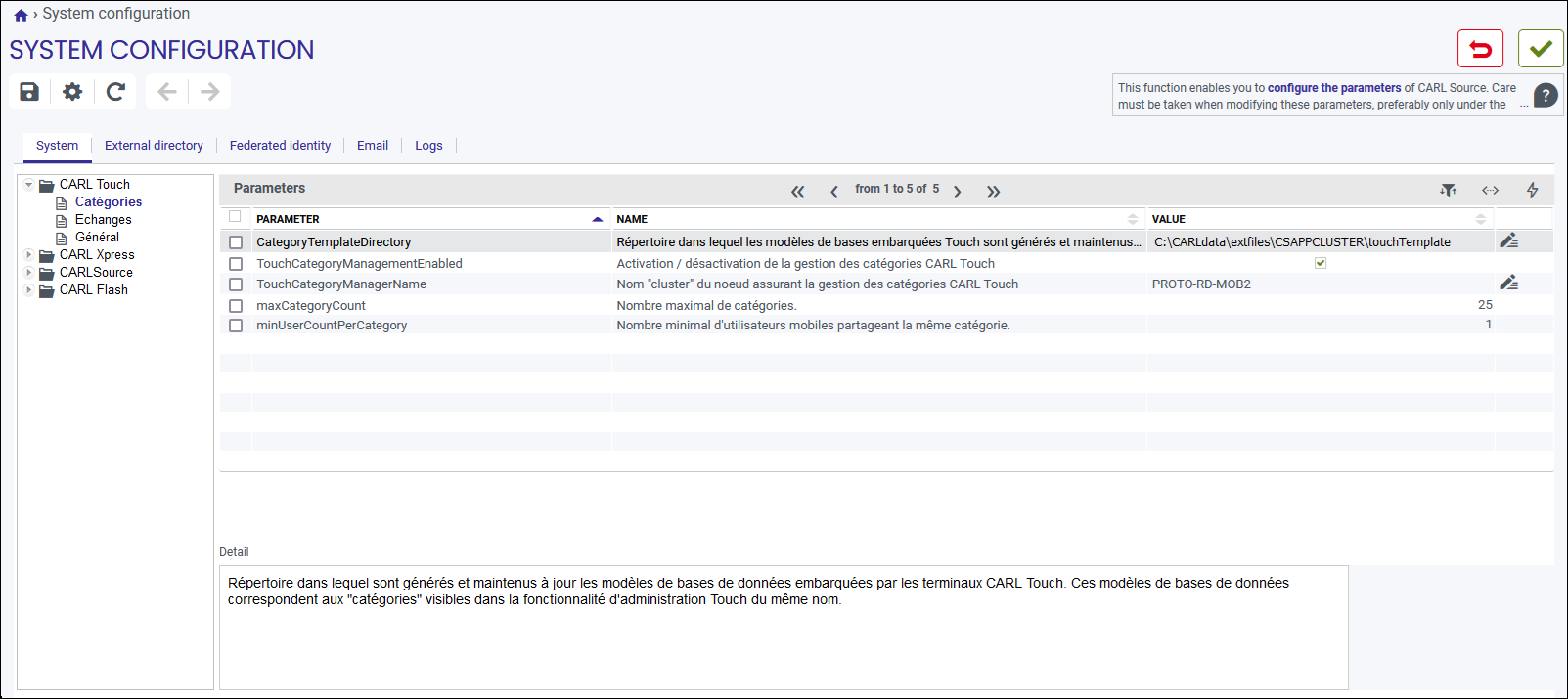
Select the Categories option on the CARL Touch product. The five CARL Touch settings are displayed, with their values.
3.3.1. CategoryTemplateDirectory
Directory in which database templates downloaded to CARL Touch terminals are generated and maintained. These databases templates correspond to the «categories» visible in the CARL Touch Categories administration function. This directory must be defined with a local path from the standpoint of the TouchCategoryManagerName.
Example: E:\CARLdata\extfiles\production\category ou /CARLdata/extfiles/production/category
|
|
Network paths must be avoided at all cost. |
3.3.2. TouchCategoryManagementEnable
Enabling/Disabling management CARL Touch categories. It is advisable to activate category management in production, once the repository data (assets, structure points, etc.) is stable enough.
4. CARL Touch users
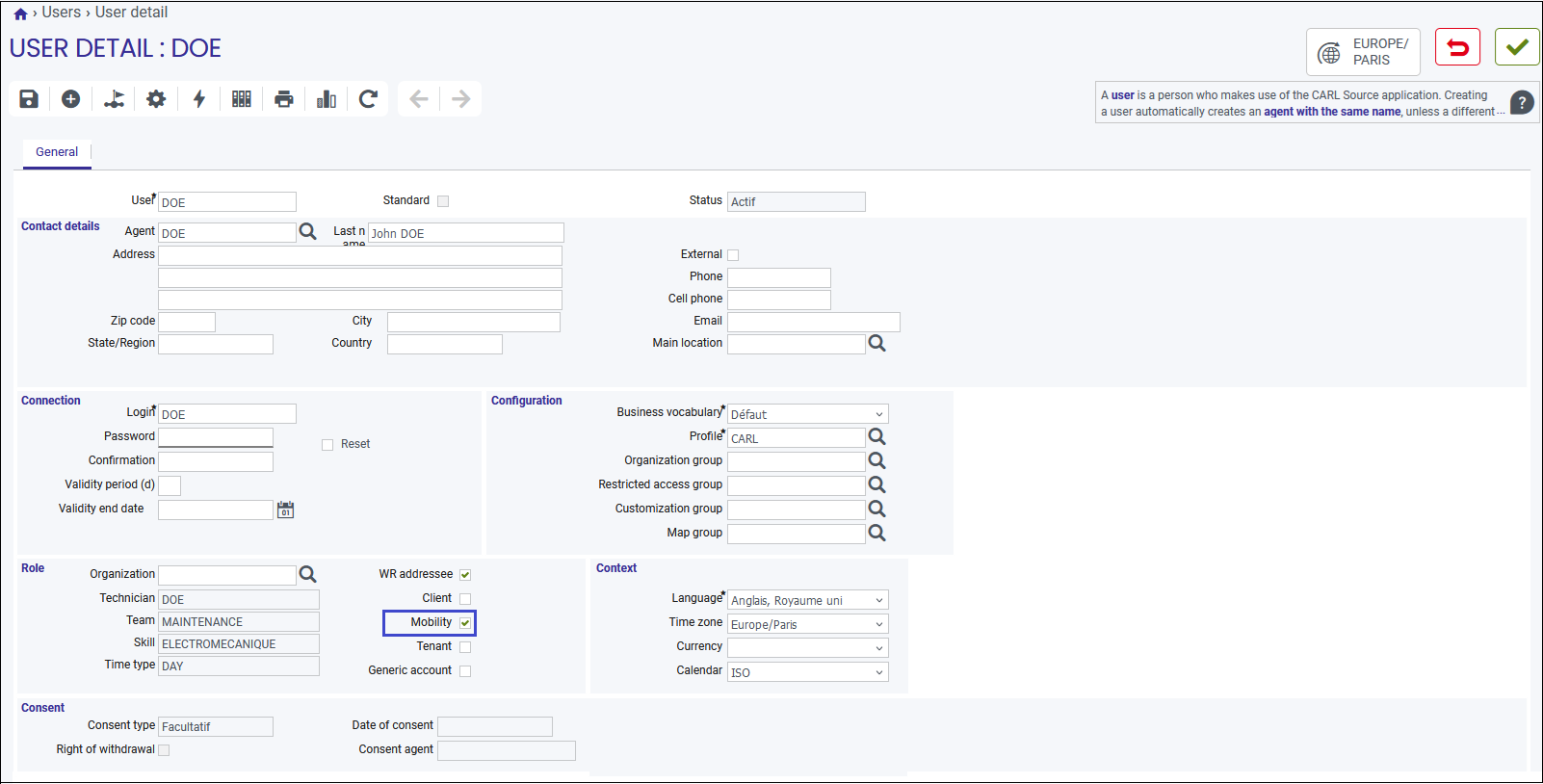
Each CARL Touch user must be declared as a CARL Source user with the mobility option. This option corresponds to the Mobility check box on the user detail form.
5. Dictionary
This is a mandatory prerequisite before starting to use CARL Touch.
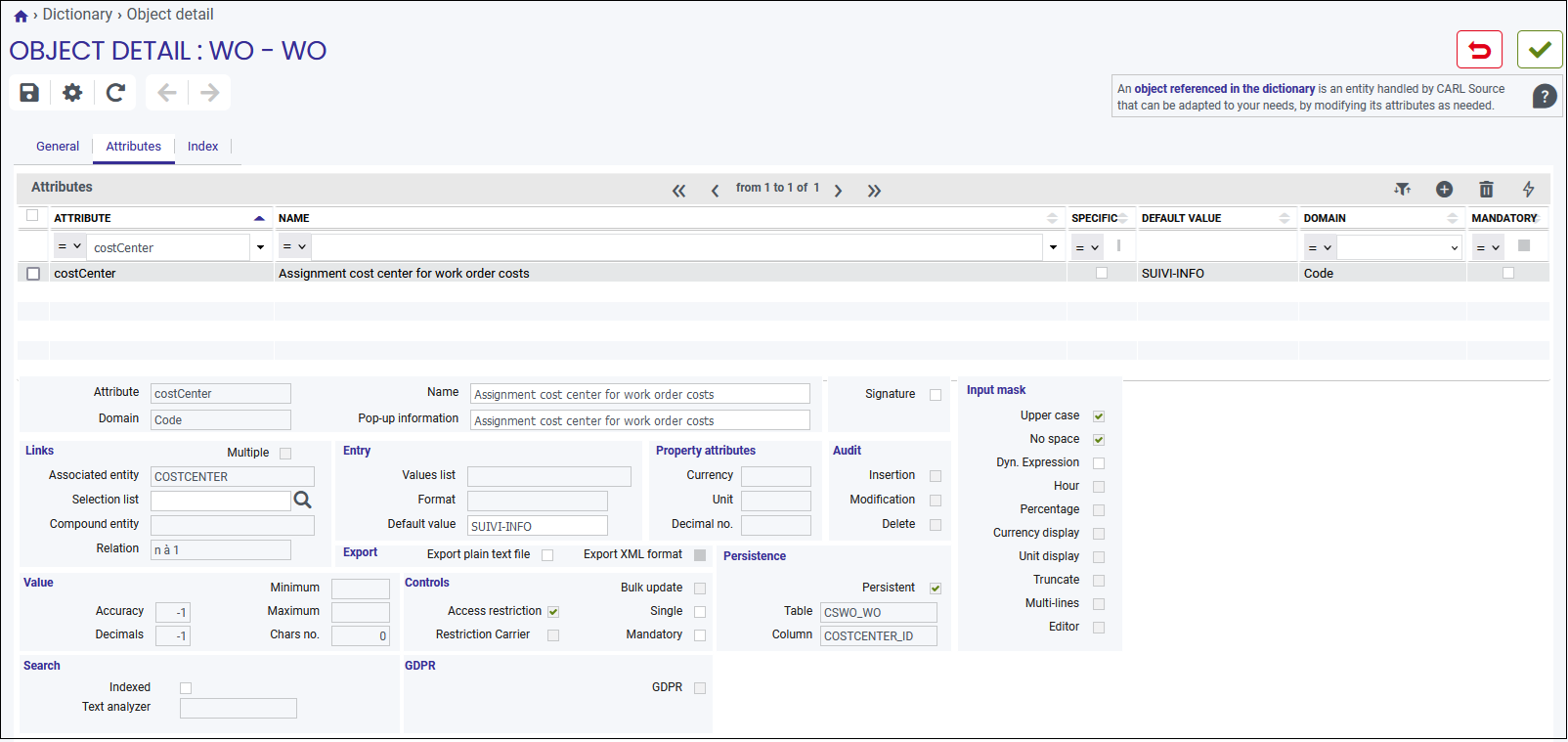
A default cost center must be defined for the WO object in the CARL Source dictionary. Indeed, when creating a task in CARL Touch, if the cost center cannot be deduced from the equipment entered, the default cost center will be initialized on the work order and will thus allow its creation in the "Validated" state.
If this default value is not entered in the Data entry box, tasks created in CARL Touch may generate conflicts.
6. Automatic jobs
6.1. Presentation
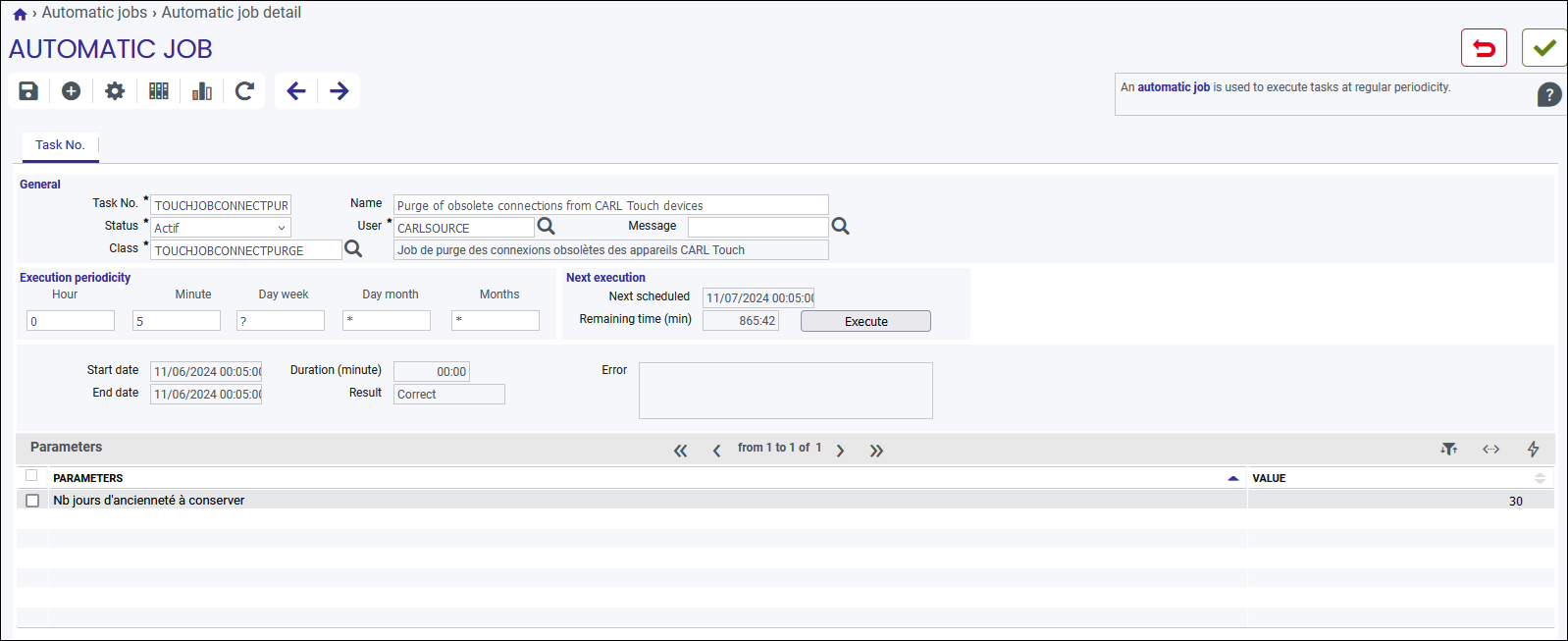
To finalise the installation of CARL Touch, the following automatic jobs, accessible in the «Automatic jobs» function of the CARL Source system module, must be executed.
6.2. Purge CARL Touch actions
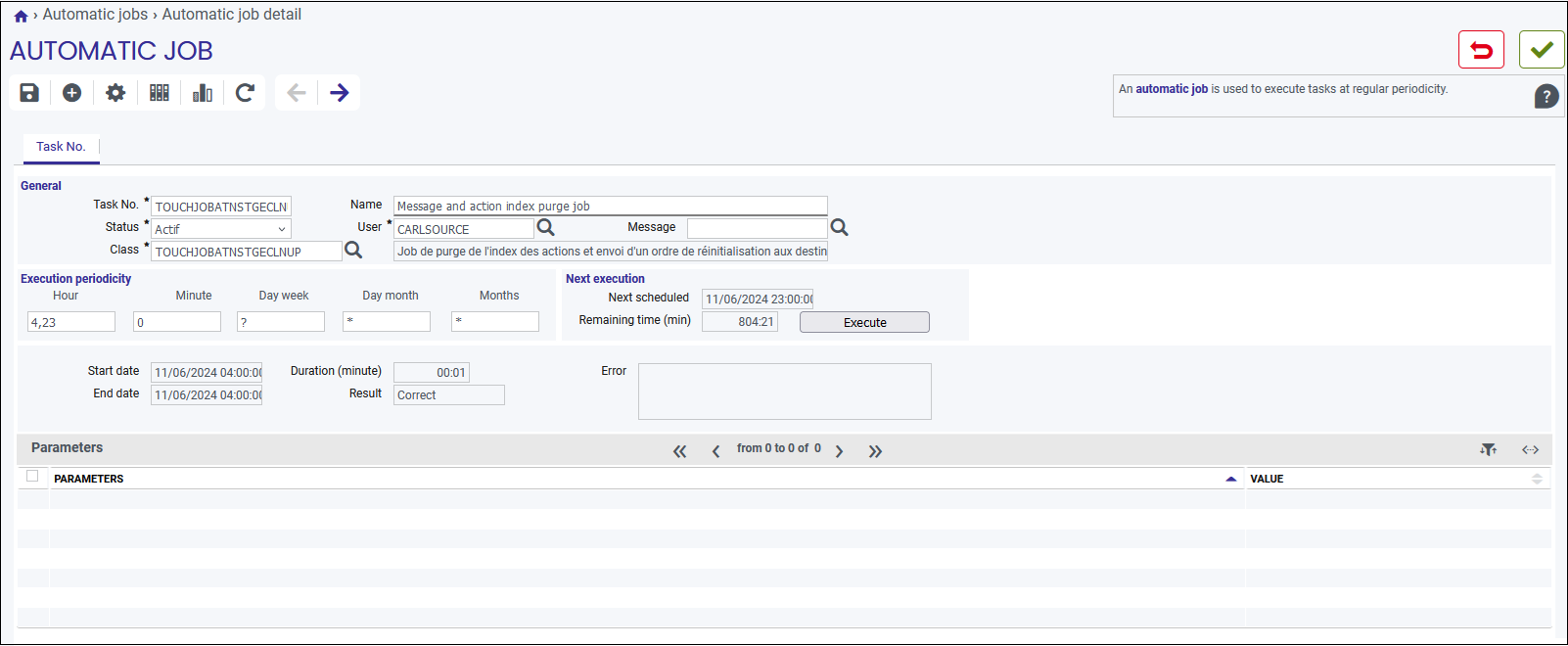
This automatic job purges orphan actions (TouchAction) and obsolete actions (TouchActionDB) from the database.
Check that the TOUCHJOBATNSTGECLNUP automatic job is set to «Active» and that a next execution date is set («Next Execution» block).
If this is not the case, click on the Execute button.
6.3. Initialization of equipment ascendants
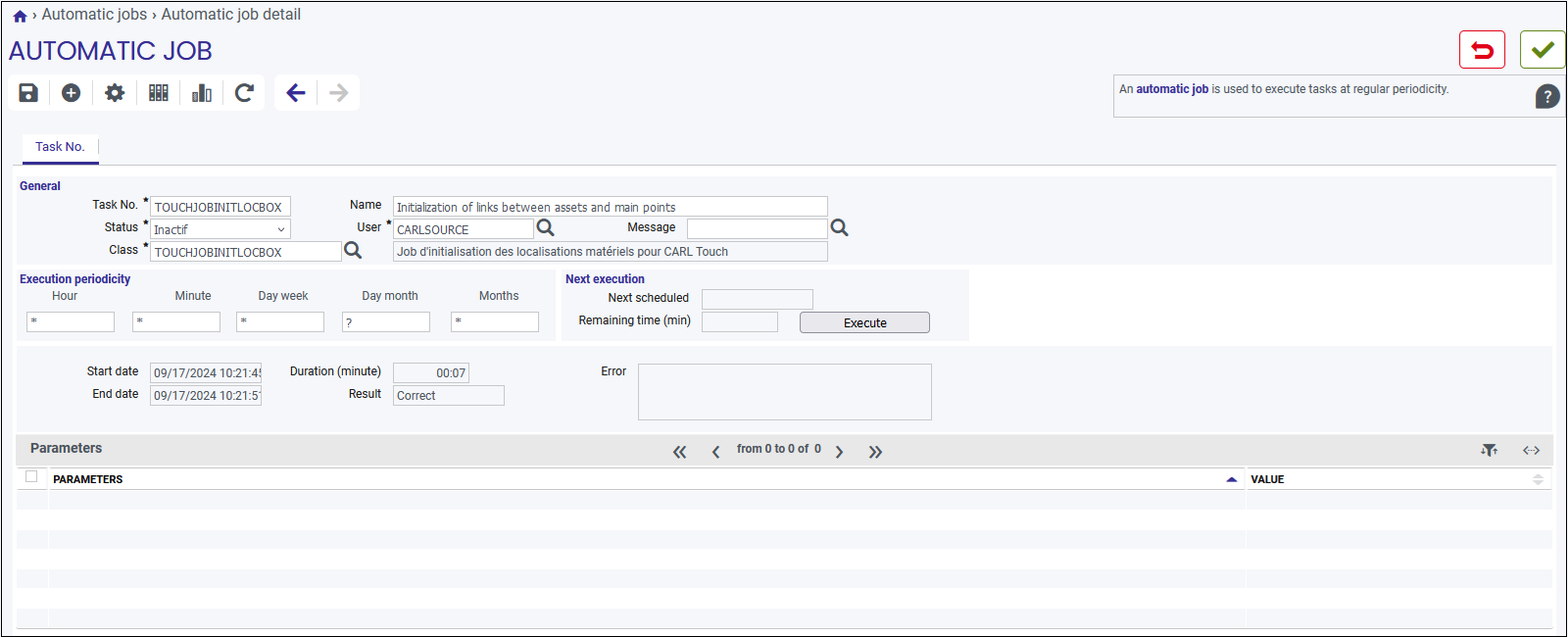
In order to initialize the direct or indirect ascendants of each equipment transferred to CARL Touch, the following automatic job must be executed once: TOUCHJOBINITLOCBOX.
To do this, access its detail form and click on the Execute button.
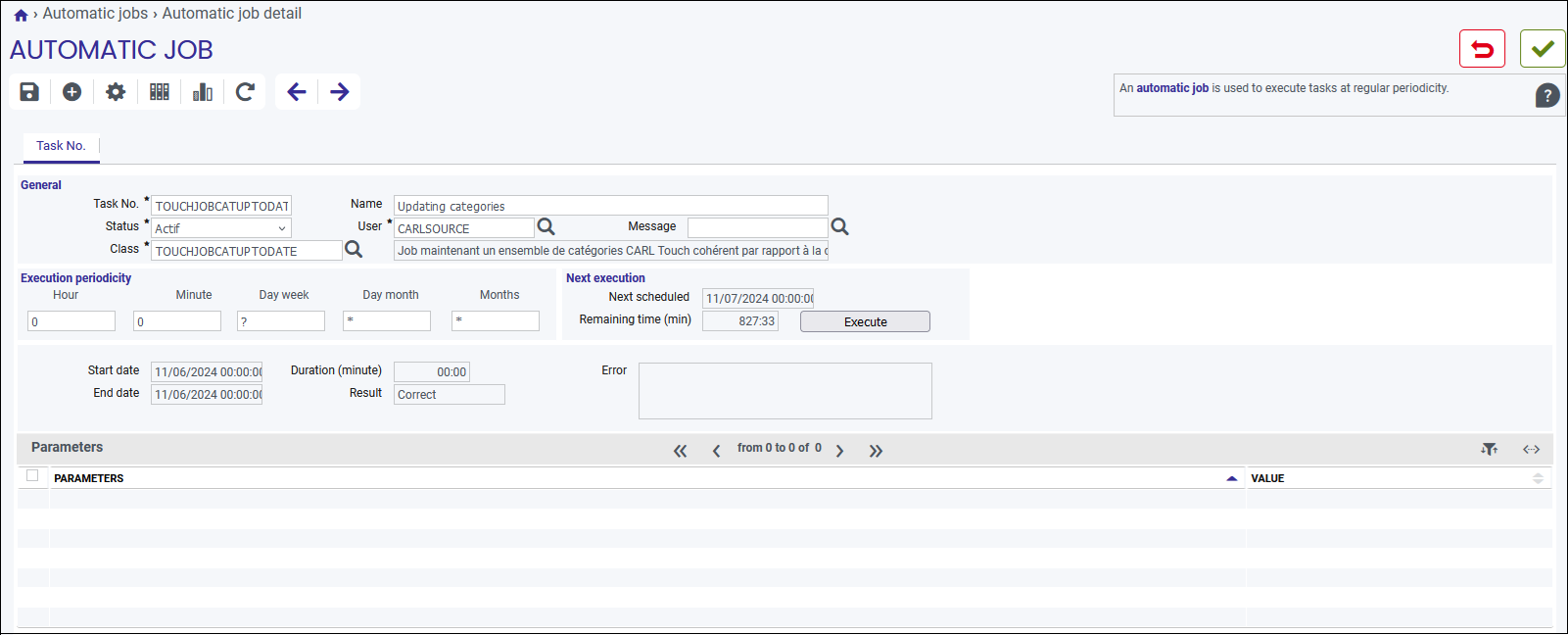
6.5. Updating categories
This automatic job is used to maintain a coherent set of CARL Touch categories with respect to the technical configuration and all the mobile users.
This automatic job will update the categories as the mapping of mobile agents evolves (profile, language, and data access restriction). In this way, new categories will be created if new mobile user categories have been defined. Similarly, categories which no longer correspond to a population of mobile users will be deleted.
Check that the automatic job TOUCHJOBCATUPTODATE is set to "Active" and that a next execution date is scheduled (section "Next execution").
If not, click the Execute button.
6.6. Rebuild categories
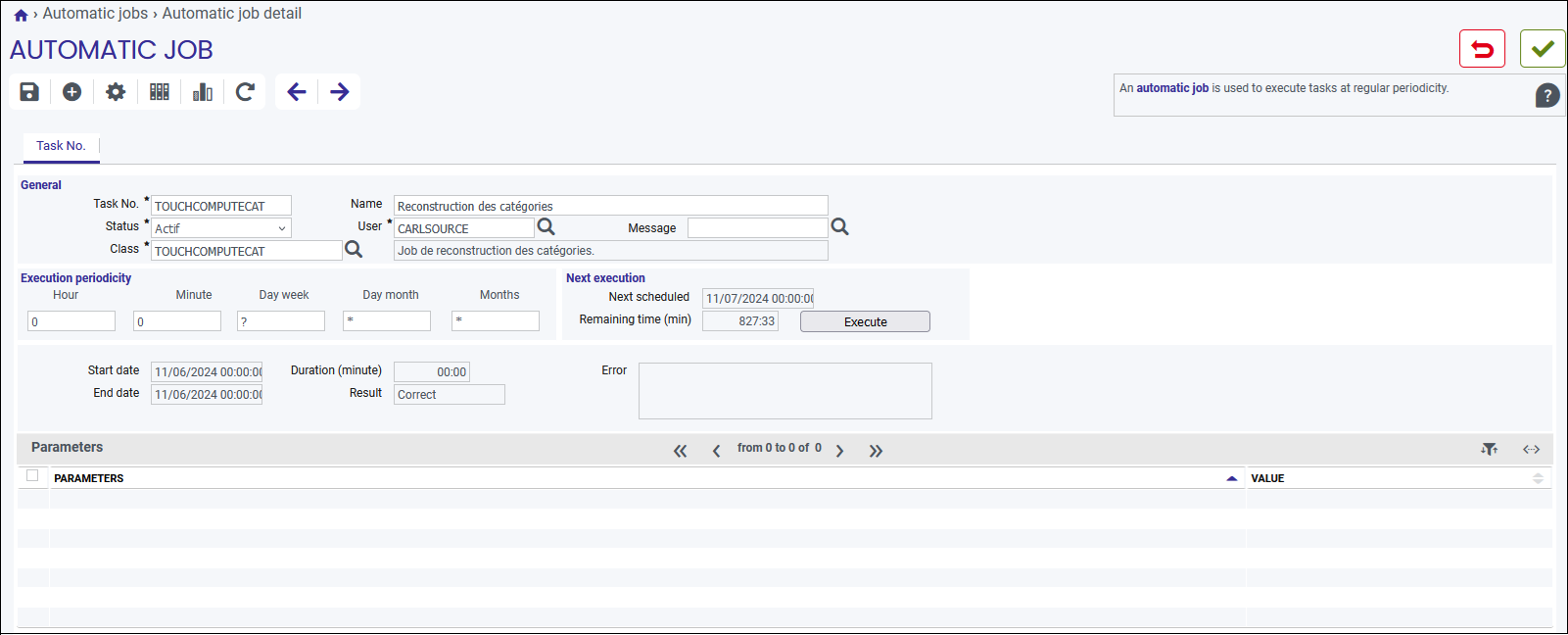
This automatic job schedules the periodic rebuild of all CARL Touch categories. When this process runs, all categories are recalculated, whether they are in the Ready or Invalid state.
By default, this automatic job is scheduled to run every 10 days.
Check that the automatic job TOUCHCOMPUTECAT is set to "Active" and that a next execution date is scheduled (section "Next execution").
If not, click the Execute button.
7. Managing categories
Categories are used to optimise the initial synchronization of CARL Touch by preparing databases before mobile users connect to the application. A category corresponds to a type of mobile user consisting of a profile, language, restricted data access group, and organization group.
Each created category corresponds to an SQLite database comprising the following reference data: locations, main points, assets, models, work order history, and item catalog.
|
|
The list of entities of which the SQLite database is composed depends on the synchronization options defined in the profile entered for the category. |
Managing categories in CARL Touch by means of CARL Source is done in the following way:
-
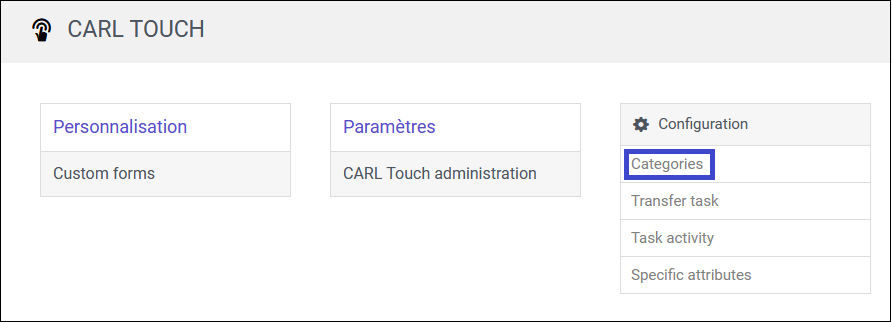
In CARL Source, go to the "CARL Touch" menu.
-
Select the "Categories" function accessible from the "Configuration" block.
-
The "General" tab offers a list of categories:

The available actions for the list of categories (accessible from the  icon) are:
-
Recalculate categories
-
Update categories
-
Repair invalid categories
-
Stop category construction
|
|
During category recalculation, the status of categories will be "Under construction" and it will switch to the "Ready" status when the job is completed. |
|
|
After an instance has been restored from CARL Source Admin, the categories must be recalculated. |
Trademark notice
Every effort has been made to ensure the accuracy of the information at the time of publication of this document.
As CARL Source is constantly evolving, CARL Berger-Levrault cannot be held responsible for any gaps or errors in this document.
If you notice any inconsistencies or errors, please contact CARL Berger-Levrault’s support department.
Any reproduction, in whole or in part, in any form whatsoever, is strictly prohibited without the prior authorization of CARL Berger-Levrault.
All trademarks and product names mentioned in this document are the property of their respective owners as listed below:
-
Android™ and Google Chrome® are registered trademarks of Google LCC.
-
ArcGIS® is a registered trademark of the Environmental Systems Research Institute.
-
Elasticsearch® is a registered trademark of Elasticsearch B.V. in the United States and other countries.
-
Firefox® is a registered trademark of the Mozilla Foundation.
-
Java™ and Oracle® are registered trademarks of Oracle Corporation.
-
PostgreSQL® is a registered trademark of The PostgreSQL Community Association of Canada.
-
Safari® is a trademark of Apple Inc. registered in the U.S. and other countries.
-
Azure®, SQL Server®, Microsoft Edge® and Windows® are registered trademarks of Microsoft Corporation.
-
Tomcat® is a registered trademark of the Apache Software Foundation in the United States and other countries.